


Excel Lambda Functions: How to Create Custom Functions Without VBA, Macros, or Other Code
In Excel, you can use Lambda functions to create your own custom functions outside the normal built-in ones; you can then assign names to these functions in the Name Manager and use them throughout your file without writing any code.
Excel Lambda Functions: How to Create Custom Functions Without VBA, Macros, or Other Code
Lambda Functions Definition: In Excel, you can use Lambda functions to create your own custom functions outside the normal built-in ones; you can then assign names to these functions in the Name Manager and use them throughout your file without writing any code.
Lambda functions have received a lot of “hype,” and while they do have their uses, they’re not quite as useful as many sources claim.
They are best used to create relatively simple functions that you use repeatedly in an Excel file, and which require moderate error-checking; they are less appropriate for complex functions that loop through ranges or entire sheets or functions with more extensive error-checking.
The perfect use case for Lambda functions is something like the Multiple of Invested Capital (MOIC) calculation, also known as the Money-on-Money Multiple:
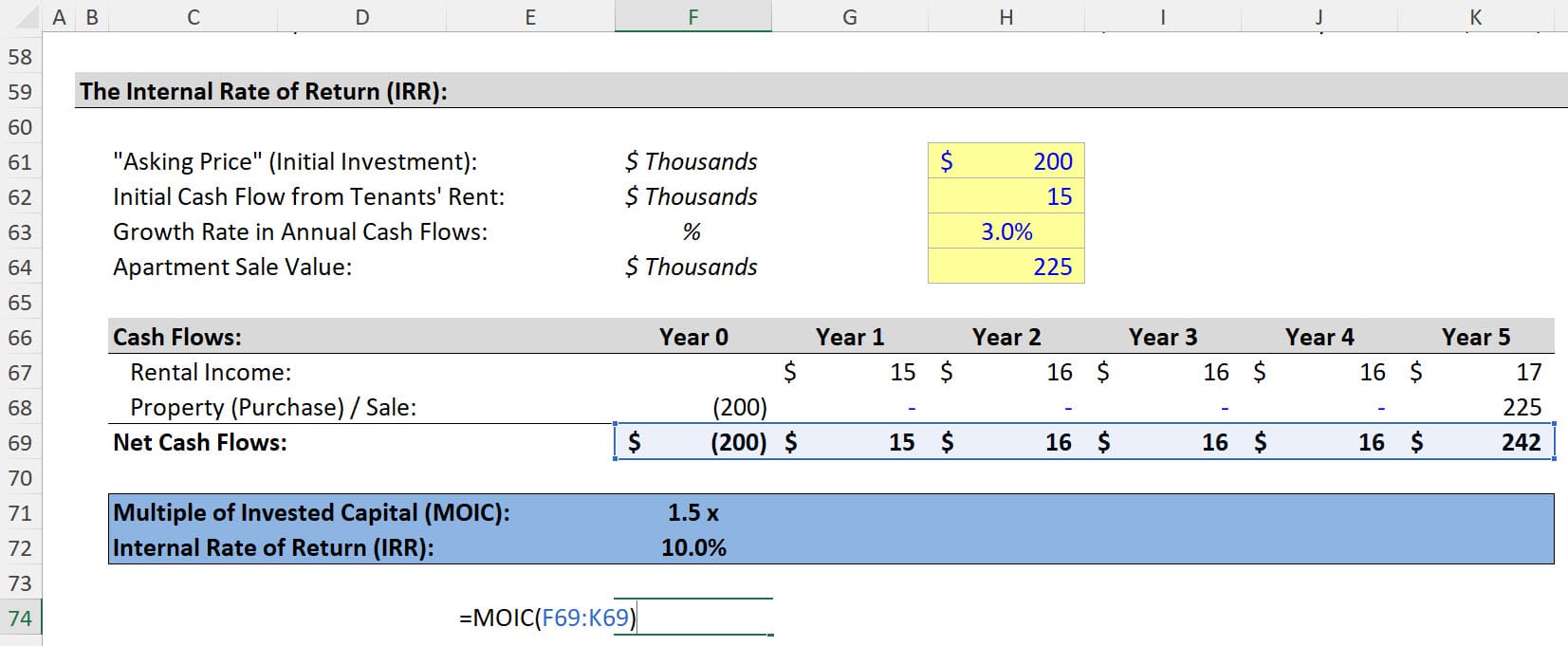
The calculations are simple, but they take some time to write manually.
By creating your own custom MOIC function, you can write the calculations once, add some error-checking, and use this repeatedly rather than rewriting it each time.
By contrast, you should NOT use Lambda Functions for something like automatically formatting a range of cells or creating a “Table of Contents” (both covered in the VBA part of our Excel course).
Due to the complexity and cell references, conventional VBA and macros are more suitable.
Files & Resources:
Video Table of Contents:
- 0:00: Introduction
- 2:31: Basic Syntax
- 4:51: Part 1: The MOIC Function
- 7:16: Part 2: Error-Checking the Function
- 11:21: Part 3: Extensions and Drawbacks of Lambda Functions
- 13:14: Recap and Summary
The Basic Syntax of Excel Lambda Functions
The basic syntax of Lambda functions is as follows:
=LAMBDA(Parameters, Calculations) (Cells Or Values You’re Inputting as Parameters)
For example, you could create a simple “Grow Number at Percentage” function as follows:
=LAMBDA(Base,Growth_Rate,Base*(1+Growth_Rate))(100, 5%)
This is pointless because it’s too simple for the Lambda features to be useful. However, you must know the basic syntax before creating the “useful version.”
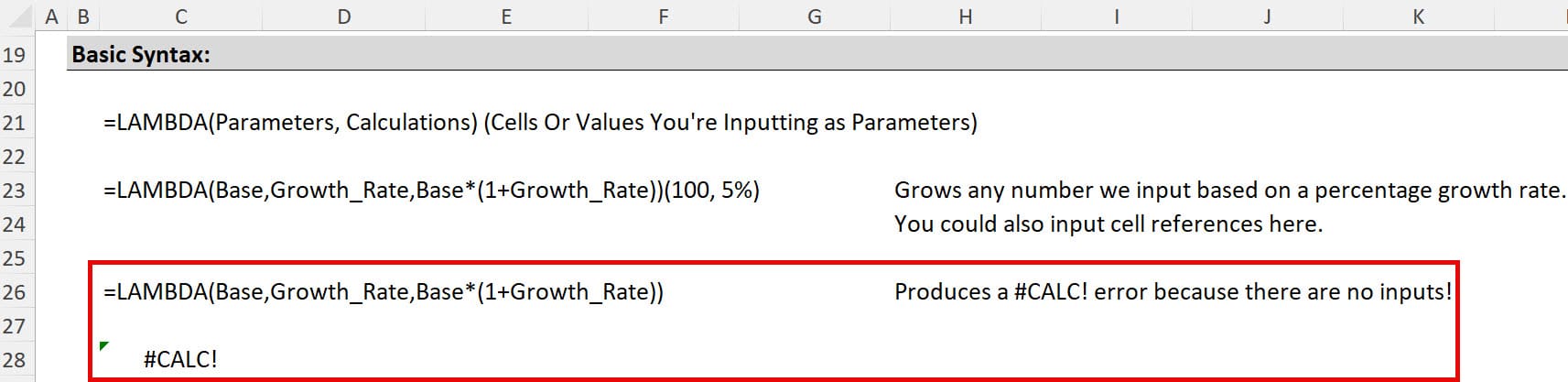
If you enter the function without the input parameters of 100 and 5% at the end, you will get an error message:
Excel Lambda Functions: How to Create the Multiple of Invested Capital (MOIC) Calculation
The Multiple of Invested Capital in leveraged buyout models, real estate models, and project finance models gives you the ratio of the cash flows plus the exit value of an investment to the upfront purchase price.
For example, if a PE firm acquires a company for $200, earns $50 in cash flows from it, and sells it for $350, the Multiple of Invested Capital is ($50 + $350) / $200 = 2.0x.
You can use several formulas and rules of thumb to link this MOIC to the internal rate of return (IRR) and estimate the average annualized return based on the holding period.
Normally, you use the SUMIF or SUMIFS function to calculate the MOIC in Excel:
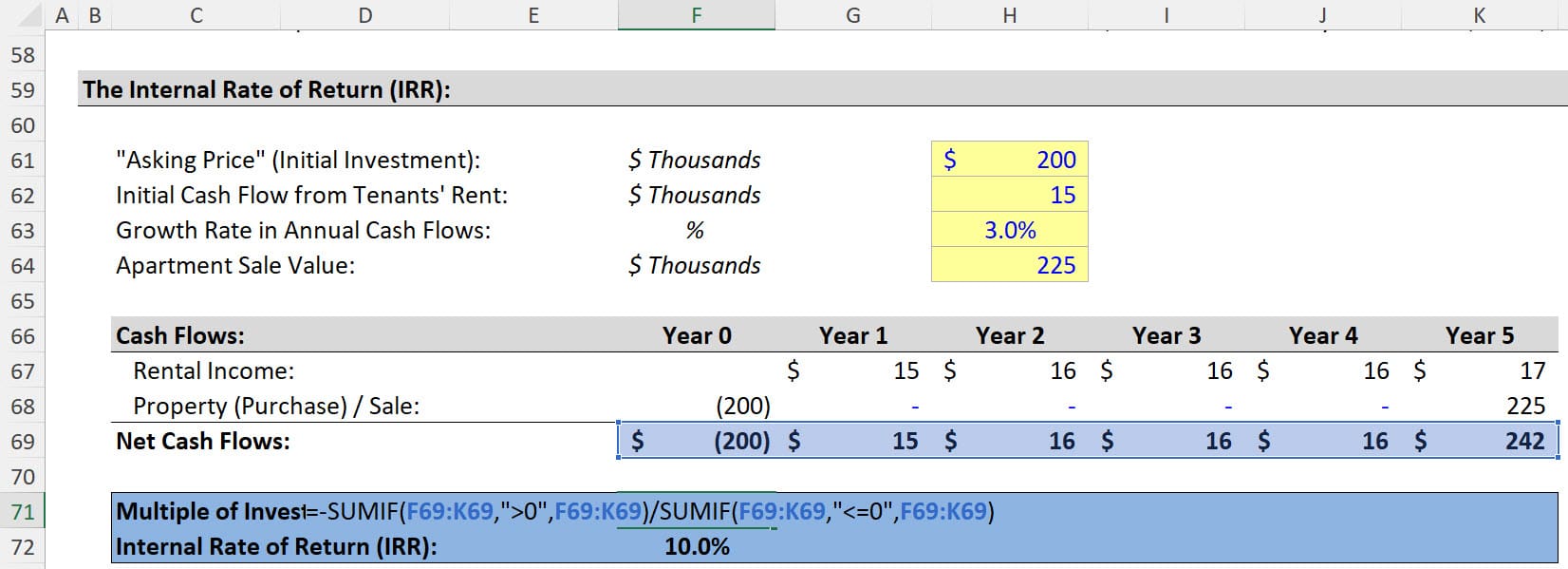
But you could rewrite this as a Lambda function as follows:
=LAMBDA(Range,-SUMIF(Range,”>0″,Range)/SUMIF(Range,”<=0″,Range))(F76:K76)
Then, you could open the Name Manager with Ctrl + F3, enter this function without the input parameters at the end, and name it “MOIC”:
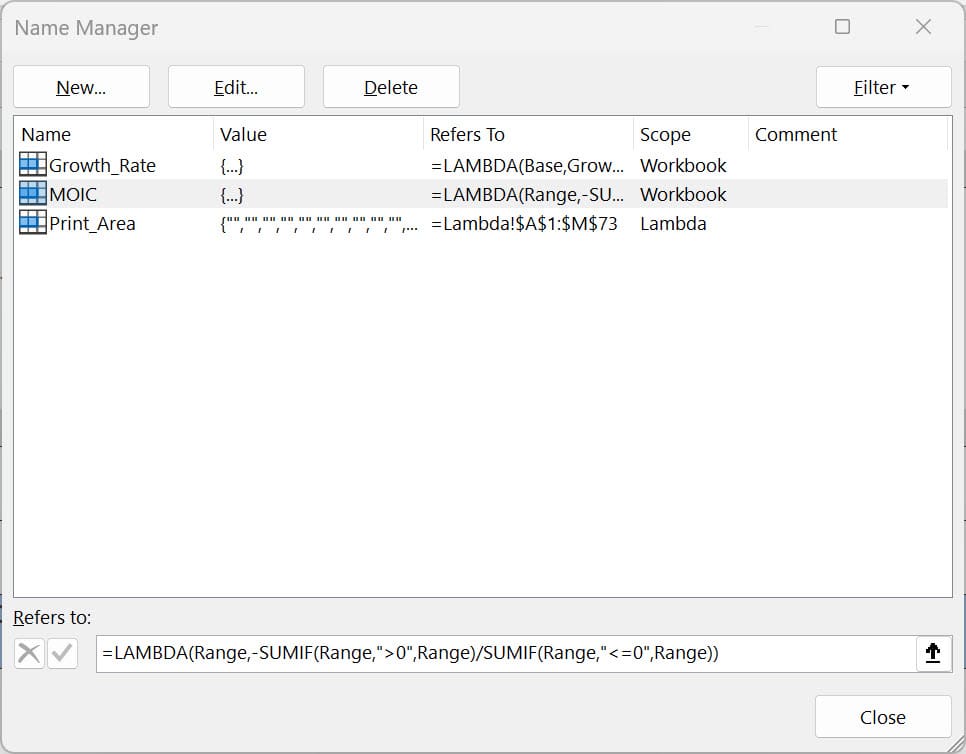
And now you can use this function wherever you want in this file by typing =MOIC and entering the range of cells in the parentheses.

-
Become a shortcut, formula & formatting machine
Excel will be your “native language” after you finish this course
-
Learn the skills with dozens of practice exercises
Learn by doing and check your work against the solutions
-
Shave hours off your workday with VBA and macros
Automate repetitive tasks, format spreadsheets quickly, and more
Error-Checking the MOIC Lambda Function
This function “works,” but it would be better if you did some basic error-checking as well.
For example, the calculations make sense only if there is at least one positive number and one negative number in the range, so that you can check for both conditions:
IF(AND(COUNTIF(Range,”<0″)>=1,COUNTIF(Range,”>0″)>=1)
And then you could add this error-checking to the Lambda function:
=LAMBDA(Range,IF(AND(COUNTIF(Range,”<0″)>=1,COUNTIF(Range,”>0″)>=1),-SUMIF(Range,”>0″,Range)/SUMIF(Range,”<=0″,Range),”Range must have at least 1 positive and 1 negative number in it.”))(F76:K76)
In the Name Manager, as always, you leave out the input parameters at the end:
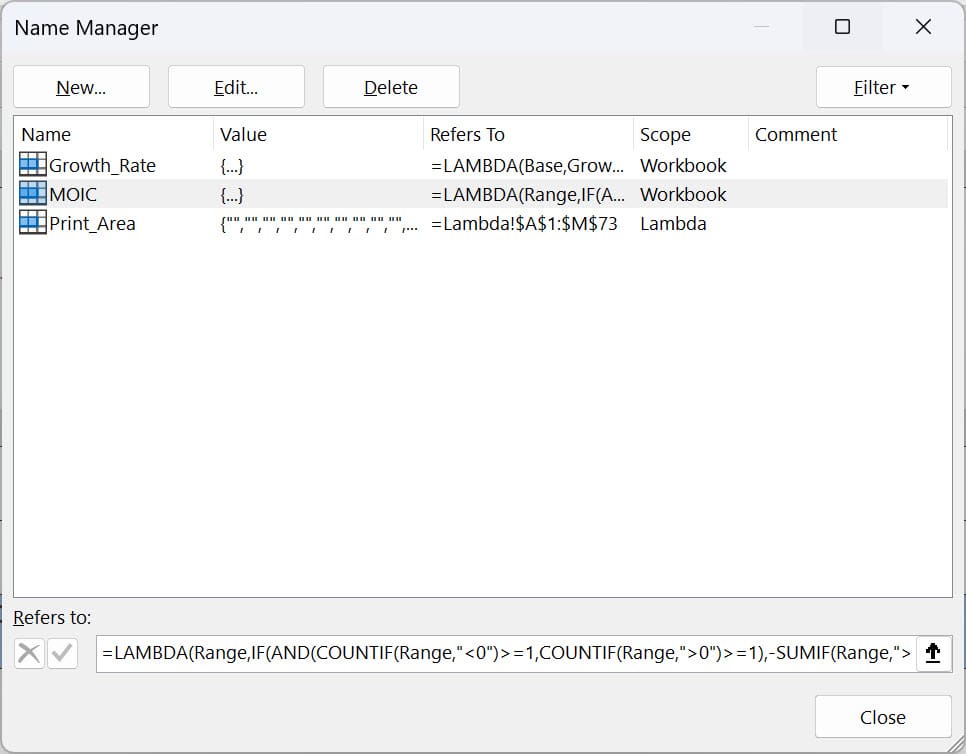
If you now apply this MOIC function to an invalid range, the error message will appear:
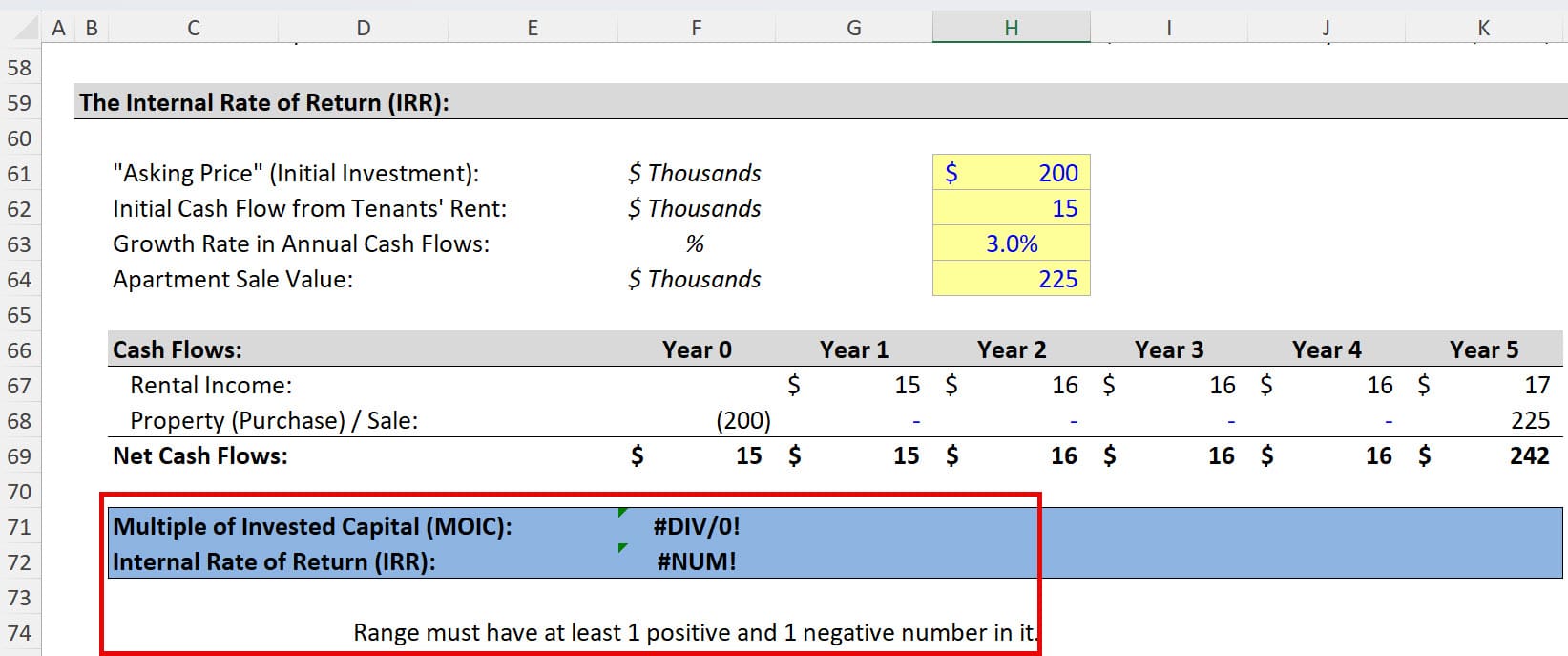
There is no error message in the standard SUMIF version since you have not added the error-checking there.
How to Extend the Lambda Function Even Further
This function is useful but still not ideal because it does not check for “numbers” that are dates (they’re stored the same way in Excel), and it does not exclude text.
You could also check for issues such as the first negative number in the range preceding the first positive number to ensure that the series represents an investment followed by positive cash flows.
Unfortunately, some of these cases are cumbersome to check within the Lambda function interface; VBA is more appropriate for this type of nuanced error-checking.
The Drawbacks of Excel Lambda Functions
First, it is a bit cumbersome to edit Lambda functions because of how far they scroll over in the Formula Bar:
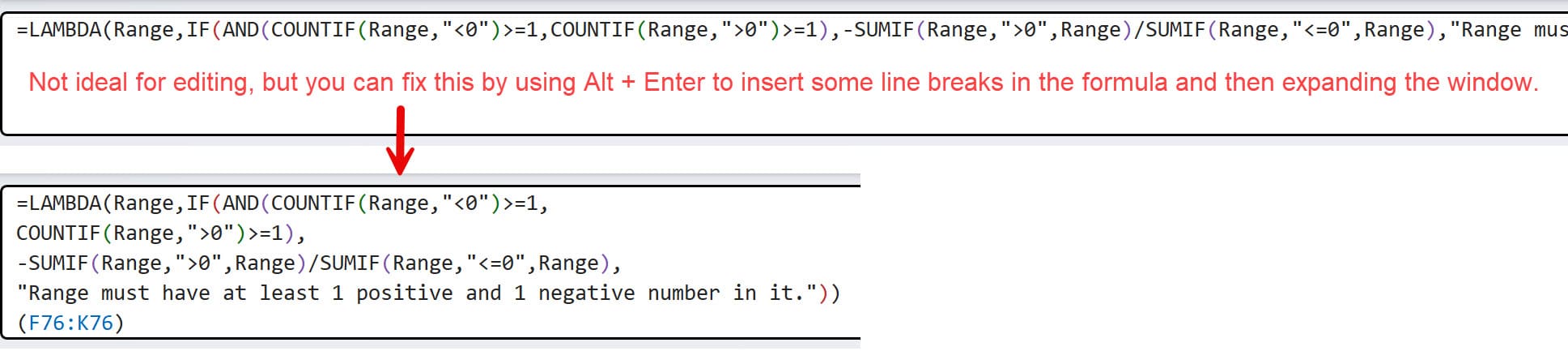
You can improve this by using the Alt + Enter shortcut to add line breaks in between parts of the function and expanding the Formula Bar area.
Second, even if you change the input interface in this way, it’s still not ideal for entering complicated conditions or calculations.
Yes, people on Reddit have used Lambda functions to do amazing things in Excel, but many of these examples do not follow “best practices” – i.e., someone else looking at the functions would be confused about the intent and function setup.
Finally, Lambda functions are not portable because they exist in the Name Manager, which is linked to each Excel file.
So, if you create a series of useful Lambda functions, you’ll have to copy and paste them from the Name Manager in one file to any other files you’re using.
It’s not like the Quick Access Toolbar (QAT) or VBA code that you can import by default whenever you open any file in Excel.
The bottom line is that Lambda functions have their uses in financial modeling, but they’re not necessarily a significant improvement over standard VBA and macros for creating user-defined functions – but they are more user-friendly.

About Brian DeChesare
Brian DeChesare is the Founder of Mergers & Inquisitions and Breaking Into Wall Street. In his spare time, he enjoys lifting weights, running, traveling, obsessively watching TV shows, and defeating Sauron.

