


Excel FILTER Function: Data, Financial Models, and the Multiverse
The FILTER function in Excel, added in the 365 version and Excel 2021 and beyond, lets you extract multiple matching rows from a set of data based on one or more conditions; it updates the results dynamically as the data changes and creates a spill range you can reference in other formulas.
Excel FILTER Function: Data, Financial Models, and the Multiverse
Excel FILTER Function Definition: The FILTER function in Excel, added in the 365 version and Excel 2021 and beyond, lets you extract multiple matching rows from a set of data based on one or more conditions; it updates the results dynamically as the data changes and creates a spill range you can reference in other formulas.
Microsoft has added dozens of features, functions, and formulas to Excel since ~2020, but the FILTER function is one of the top 5 most useful new additions.
Other functions, such as XLOOKUP and INDEX/MATCH, exist mostly to find single values in ranges of data.
But FILTER is about finding multiple matching records without modifying the original data.
If XLOOKUP and INDEX/MATCH are like Spider-Man, you can think of FILTER as the “multiverse” version:

The basic parameters are as follows:
=FILTER(Array, Include, [If Empty])
You reference the “array” or range of data you want to filter, you specify the criteria to filter it, and then you state what will appear if nothing matches your criteria.
For example, we could “filter” a list of customer order data for Orders above $1,000 with this function:
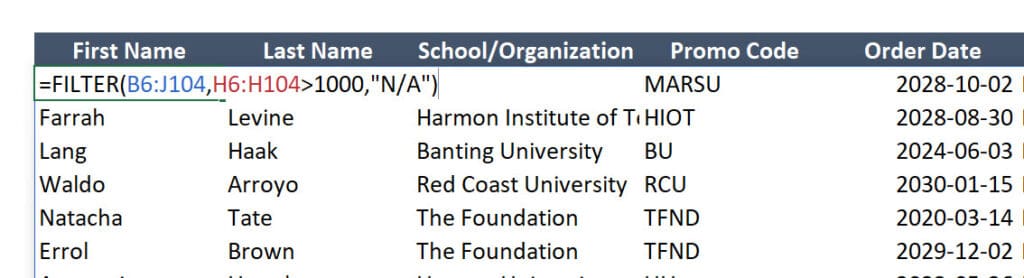
The B6:J104 part refers to the entire range of customer order data, which is to the left of this smaller area.
This gives us a list of orders that dynamically updates as new data is added; we can reference this spill range with the “#” notation and use it in other operations, and it will keep resizing as the data changes:

FILTER is incredibly useful for data analysis, but it’s also useful in financial models – especially when you are building asset-level forecasts, such as for private equity portfolio companies, properties in real estate, or solar/wind farms in project finance.
Files & Resources:
Video Table of Contents:
- 0:00: Introduction
- 4:24: Part 1: FILTER with Multiple Criteria
- 7:28: Part 2: FILTER for PE Fund Modeling
- 12:31: Part 3: FILTER with the XIRR and IRR Functions
- 15:31: Part 4: How to Make This More Dynamic
- 19:27: Recap and Summary
Excel FILTER Function with Multiple Criteria
To use FILTER with multiple criteria, one method is to “multiply together” the separate fields.
For example, let’s say that we want to capture all orders by “Mars University” for “Product G” in this sales data.
To do this, we’d enter the entire range to filter and then use (Column1=Target1) * (Column2=Target2) in the “Include” part:

To make this even more robust, we can turn these inputs into dropdown menus using Data Validation (Alt, D, L in PC Excel) and the SORT and UNIQUE functions:
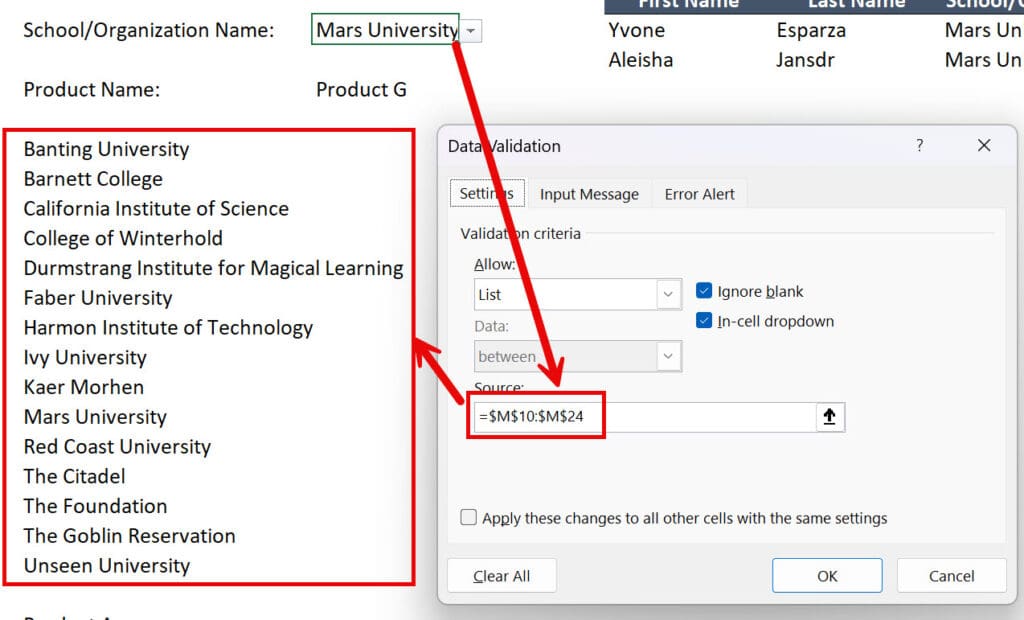
We directly reference these ranges in the Data Validation menu after selecting “List” under “Allow” and going to the “Source” area.
The FILTER function then updates the area on the right in real time as we keep changing the school/organization name and product name:
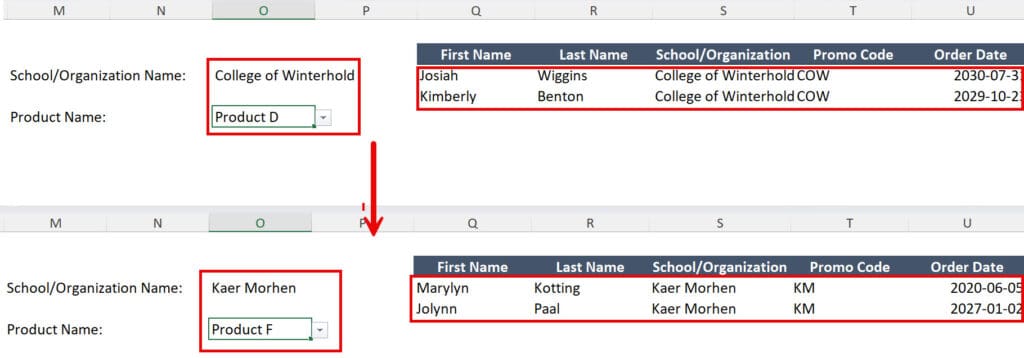
If the underlying data changes because of new additions or deletions, FILTER automatically updates its output as well.
We can also use NOT conditions, dates, and many other inputs with FILTER; this just scratches the surface.
How to Use the FILTER Function in Excel for Financial Models
In financial models, FILTER is useful for creating roll-ups, summaries, and aggregate tables, especially in asset-level models.
For example, when modeling an oil & gas company, you might want to summarize the production and reserves in each oil field, and in real estate, you might want to summarize the rent, net operating income (NOI), and Cap Rates for different properties.
In this example, we’ll look at a set of cash flows from a private equity fund that has invested in technology and services companies.
The goal is to create a summary table that has the Gross Multiple of Invested Capital (MOIC) and Gross Internal Rate of Return (IRR) for each company.
These formulas are straightforward if we already have the investment and exit dates, invested capital, realizations, and unrealized values for all the companies.
The starting point is retrieving the portfolio company names from this set of cash flows:
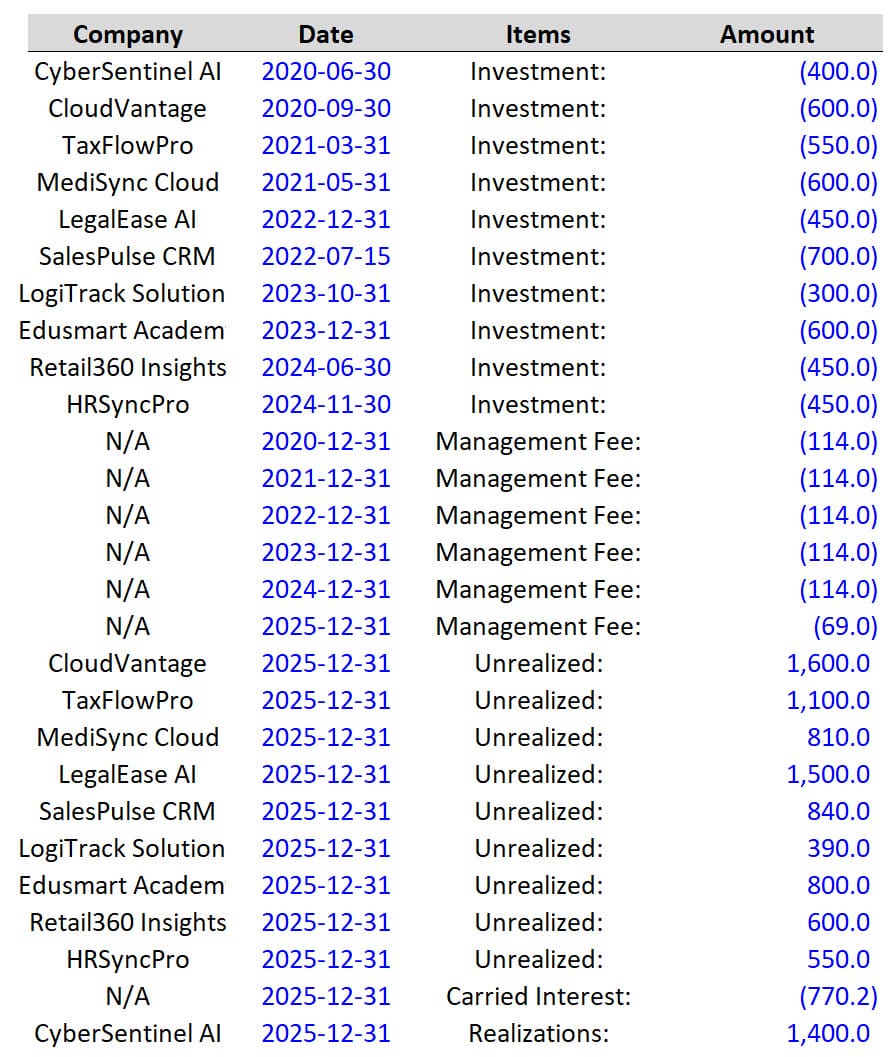
The “old way” of doing this was to copy and paste the list as values, go to Data –> Remove Duplicates, and then delete the “N/A” from the list and copy/paste this new set of names over to the summary area:
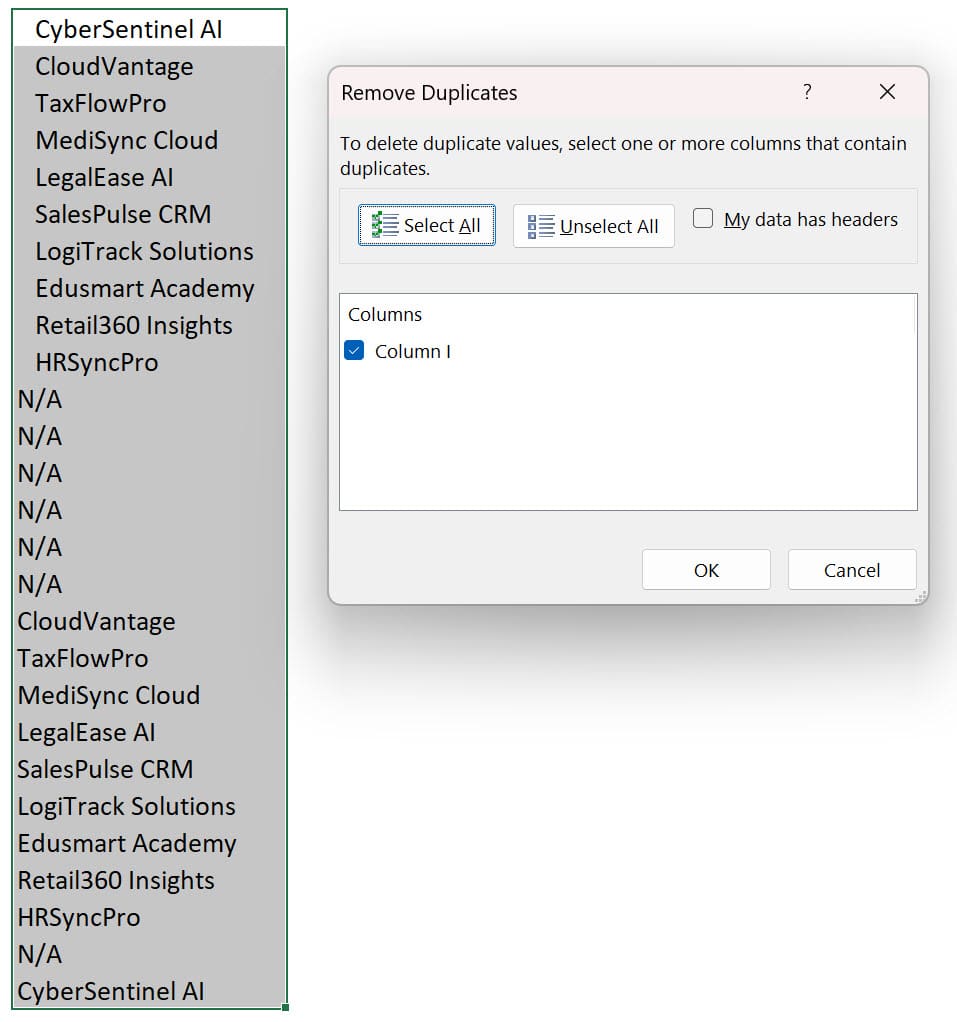
This method works, but it’s not dynamic.
If the company names or cash flows ever change, the summary table will not update properly.
We can improve it by using the FILTER and UNIQUE functions to create a dynamic list of company names that updates as the cash flow data changes:
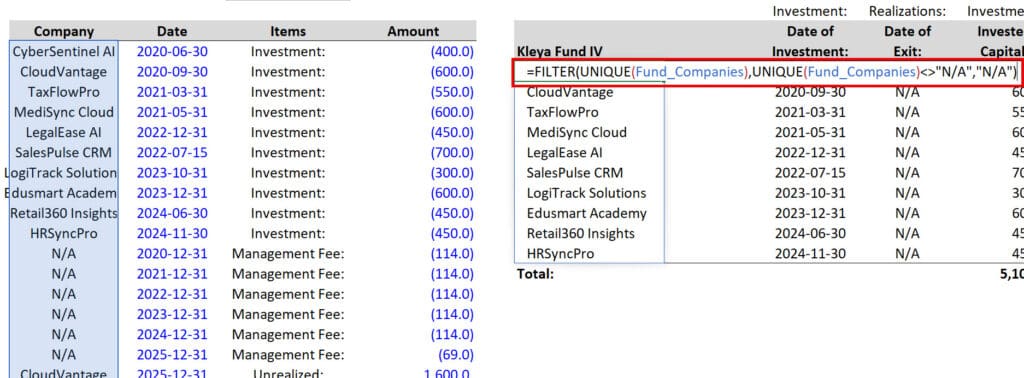
UNIQUE removes all the duplicate company names, and the FILTER, with the <>“N/A” part, removes all the “N/A” labels from the set of company names.
With the investment and exit dates, we can use a similar “multiplication trick” with XLOOKUP to find the dates based on criteria in 2 columns in this range:
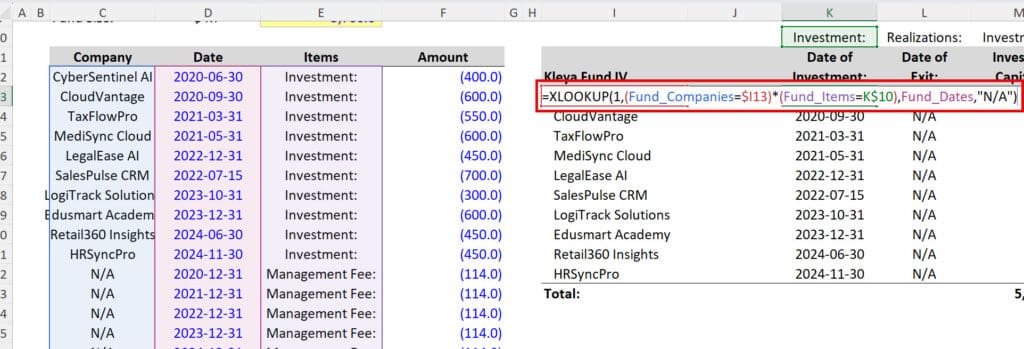
Functions like this normally work by searching the top row and leftmost column in a range for matches and then returning the value at the intersection of those matches.
However, XLOOKUP can also find a matching value based on the criteria over 2 columns.

-
Become a shortcut, formula & formatting machine
Excel will be your “native language” after you finish this course
-
Learn the skills with dozens of practice exercises
Learn by doing and check your work against the solutions
-
Shave hours off your workday with VBA and macros
Automate repetitive tasks, format spreadsheets quickly, and more
Combining FILTER with IRR or XIRR
We can also combine FILTER with traditional financial functions such as IRR and XIRR to calculate fund-level stats.
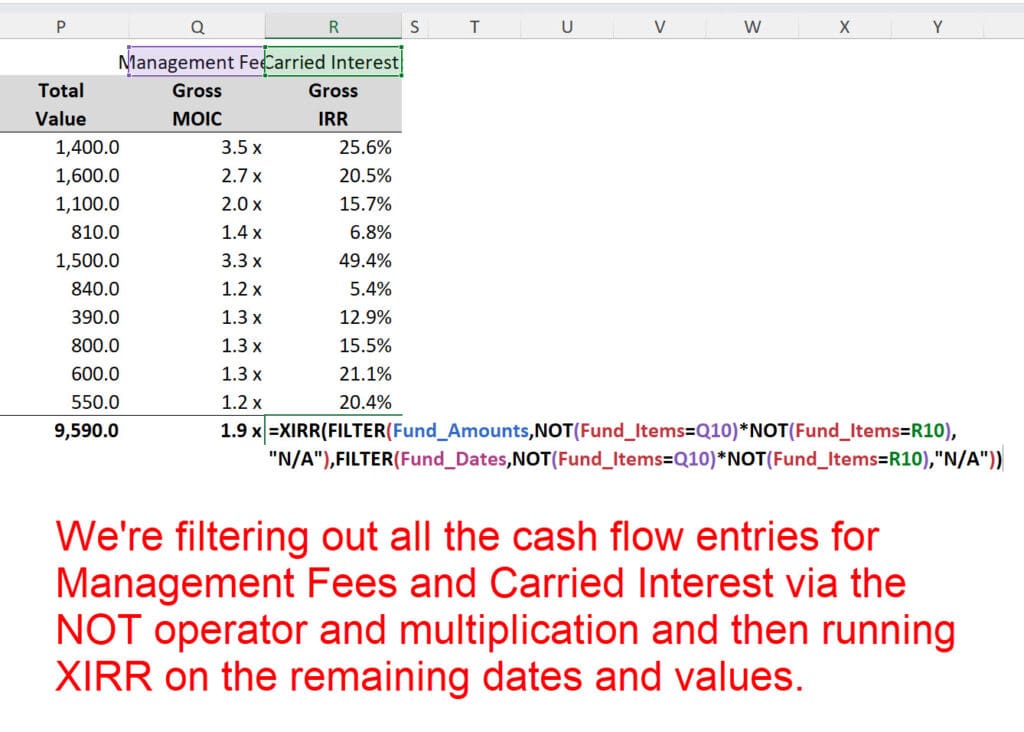
For example, what is the Gross IRR for this private equity fund?
The investment dates are irregular (see the list above), so the standard IRR function, which assumes annual intervals, does not work.
Also, we want to exclude Management Fees and Carried Interest (the performance fees the PE fund charges).
This is a perfect use case for XIRR (to deal with the irregular dates) combined with FILTER (to exclude certain entries in the set of cash flows).
The formula looks like this:
How to Make This PE Fund Summary More Dynamic with FILTER and XLOOKUP
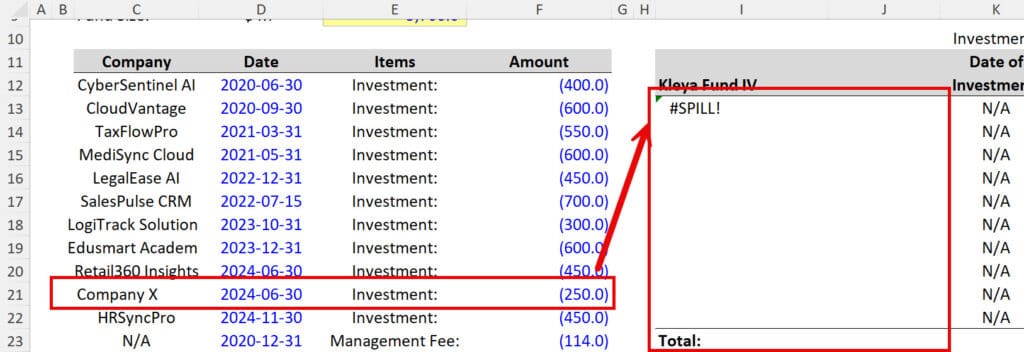
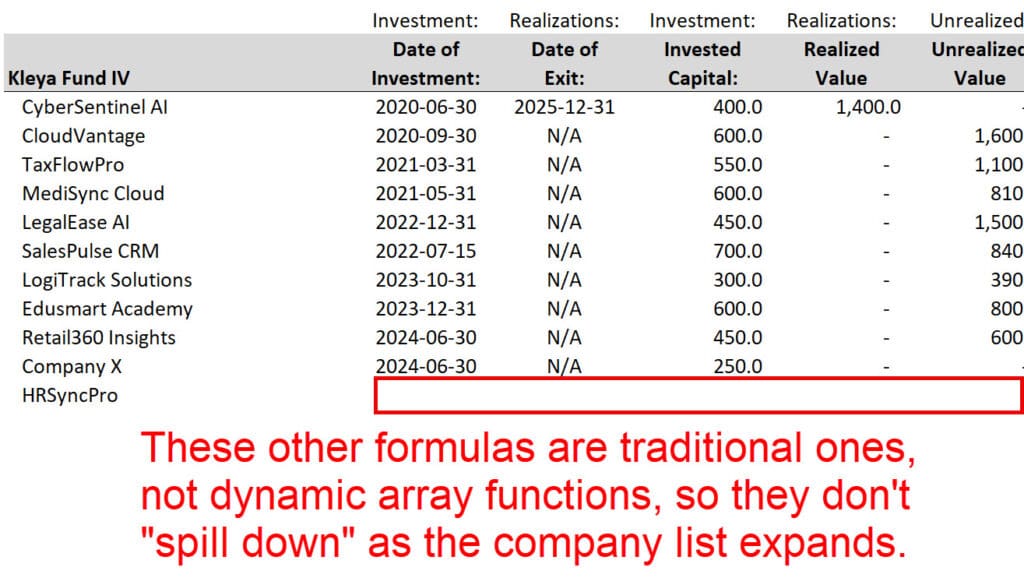
One issue here is that since we’re mixing traditional formulas with dynamic array functions, the “traditional formulas” section does not expand when we add new companies to this set.
For example, if we add “Company X” to this set of Investments, we get a #SPILL! error because of the “Total” row at the bottom that blocks the spill range:
We can fix some of this by deleting the “Total” row at the bottom, but it still doesn’t solve the issue of the other formulas not spilling down as this new company name is added to the list:
To make this model more robust, we can change the XLOOKUP formulas to return spill ranges that change dynamically as the company list changes.
And we can use the FILTER function to limit the lookup range to just the companies in the “Investment:” area and to limit the return range to dates that are within this area:
=XLOOKUP($I13#, FILTER(Fund_Companies, (Fund_Items=K$10), “N/A”), FILTER(Fund_Dates, (Fund_Items=K$10), “N/A”), “N/A”)
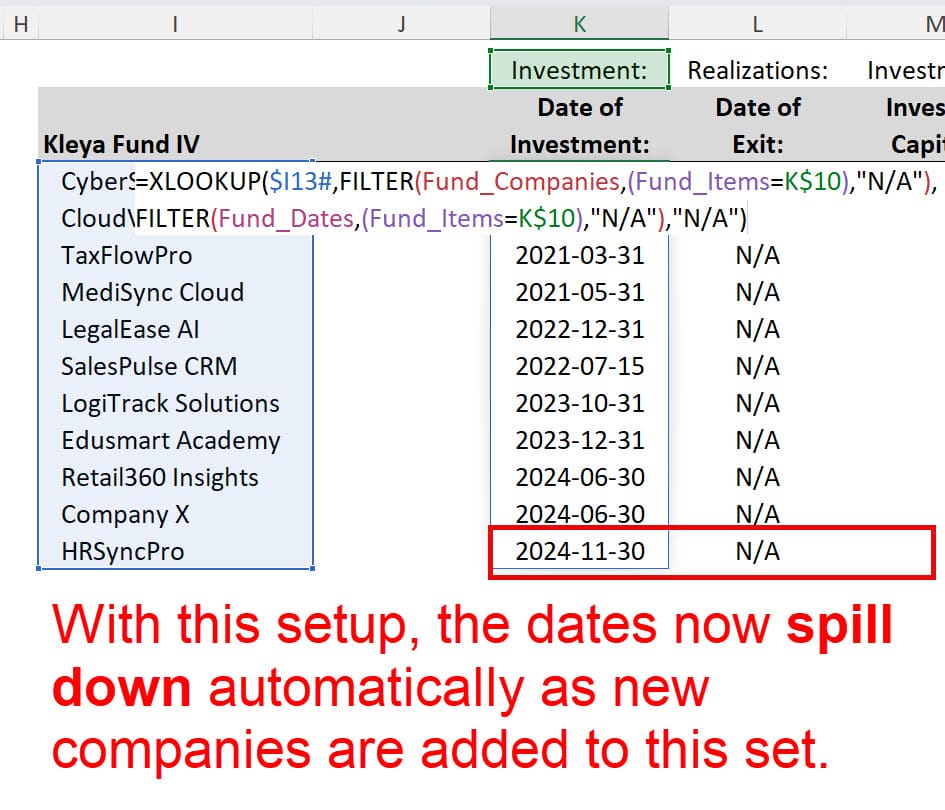
We could apply a similar setup to the rest of the formulas here to make all of them dynamic as well.
The key point is that instead of referencing just a single cell, such as I13, we should use the I13# notation to reference the spill range created by the FILTER and UNIQUE function combination for the company names on the left.
All of this is arguably overkill for a quick/simple analysis, but these features make Excel more flexible and powerful, especially in cases where a model needs to be updated continuously over long periods.

About Brian DeChesare
Brian DeChesare is the Founder of Mergers & Inquisitions and Breaking Into Wall Street. In his spare time, he enjoys lifting weights, running, traveling, obsessively watching TV shows, and defeating Sauron.

